Troubleshooting
This chapter is intended to provide checks and solutions to common issues.
No POD Detected
If Acquire mode reports that no POD was detected:
- Confirm the hardware is powered and physically connected.
- Use File > Reconnect.
- Confirm any required hardware drivers were installed with the release.
- If the application opens in Process mode at launch, switch to Acquire mode after reconnecting the hardware.
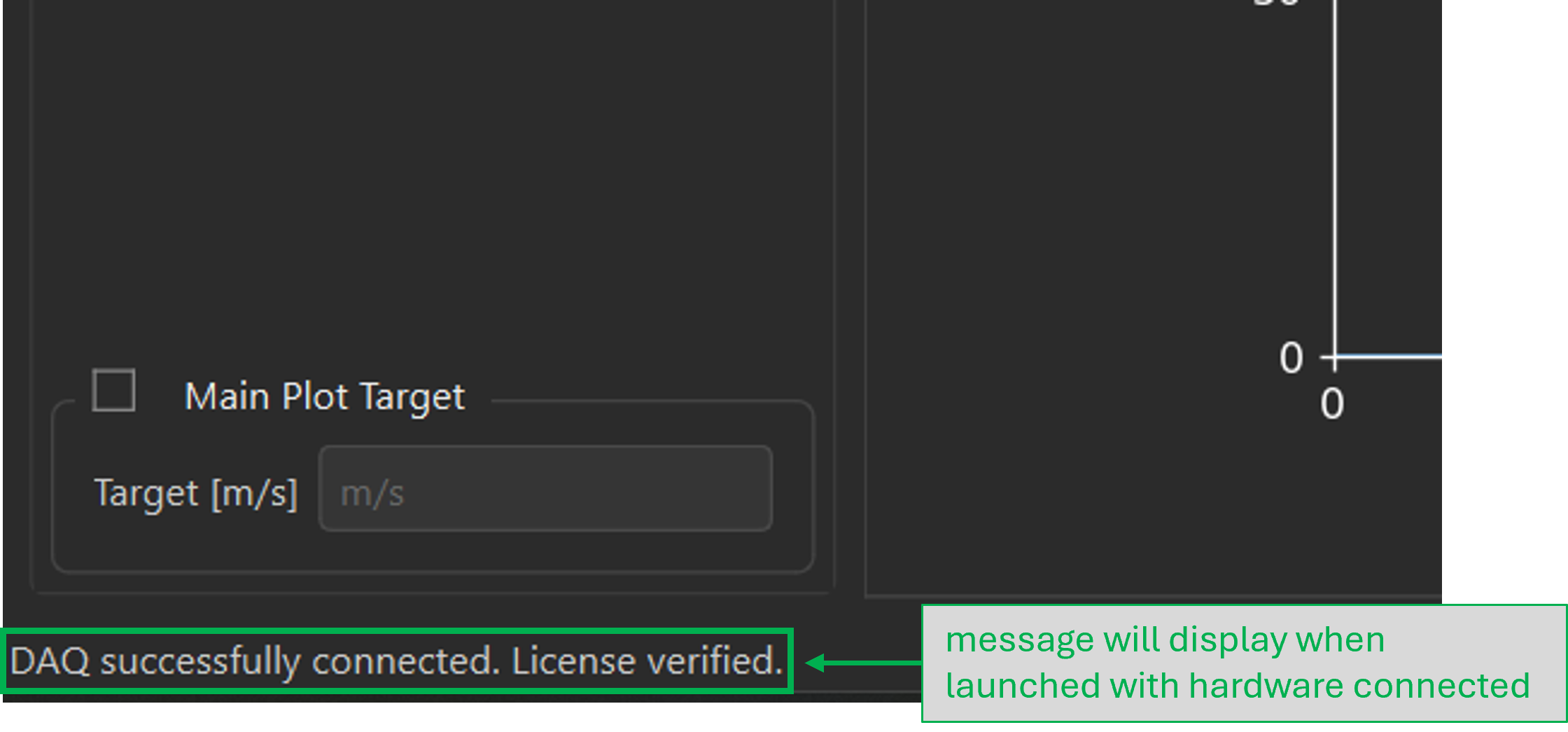
License Verification or Refresh Warnings
The current implementation can require a license refresh while connected to the Vimotis unit and the internet. If a license warning appears:
- Connect the Vimotis unit.
- Confirm internet access is available.
- Relaunch the software or use File > Reconnect.
- If the issue persists, record the exact message shown and contact Vimotis.
Recording Does Not Start
- Confirm the hardware is connected and recognized.
- Confirm a valid save folder is selected.
- Enter a clear file name before recording.
- Confirm duration and trigger settings are appropriate for the planned run.
- Watch the status message area for immediate error text.
File Load or Processing Problems
- Confirm the selected file is an HDF5 file created by the Vimotis workflow.
- If no channels appear after loading, verify the file contains expected data and labels.
- If results appear unexpected, review calibration and processing parameters before saving.
- For batch workflows, verify that selected files use consistent sensor labeling.
Export Issues
- Confirm a file is loaded before attempting CSV or figure export.
- Confirm the channels you want are checked before exporting.
- Review overwrite prompts carefully when exporting to an existing location. If the filename appears red in the text field, a file with that name already exists in the specified folder and will be overwritten.
- If full-rate analog export is unavailable, verify checked analog data is present in the loaded file.
Useful Built-In Support Tools
- Help > Log Files: open the application log folder.
- Help > Check for Updates...: verify whether a newer version is available.
- Help > About: confirm the installed version, build labeling, and release notes.
Support Escalation
If a problem cannot be resolved through the procedures in this manual, document the software version, the dataset involved, the action being performed, and any error messages shown in the application before contacting Vimotis support (info@vimotis.com).