Setup and Configuration
The application includes a dedicated Preferences dialog and stores general settings that affect the working environment.
Preferences Dialog
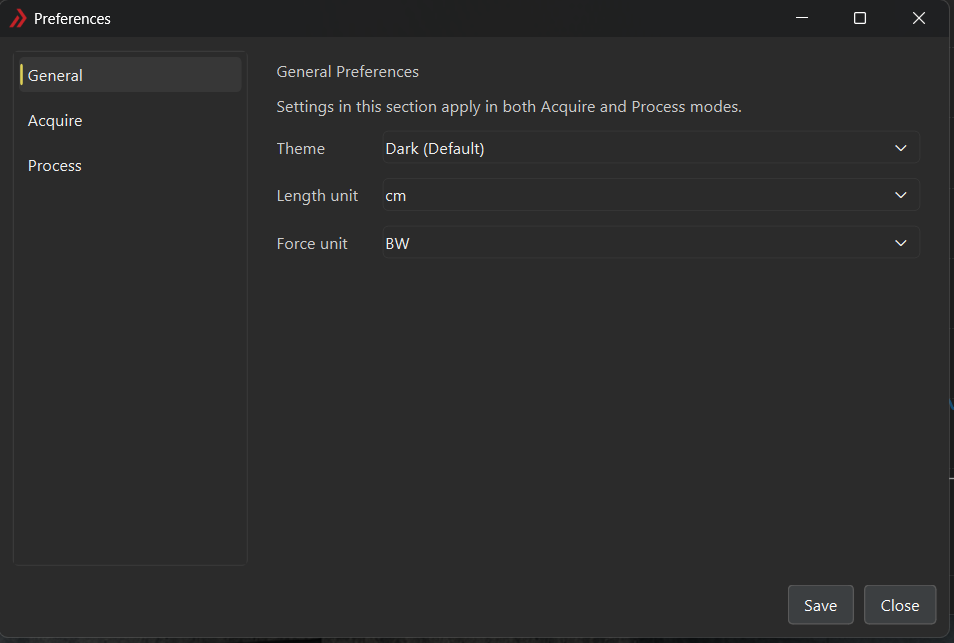
The Preferences dialog stores application-wide display and unit settings. It is shared by Acquire and Process modes and can be accessed from File > Preferences.
| Setting | Description |
|---|---|
| Theme | Selects the application theme, either Dark (Default) or Light. |
| Length unit | Selects the displayed length unit. Available values are m, cm, and mm. |
| Force unit | Selects the displayed force unit. Available values are BW, N, kN, and lbf. |
| Default bodyweight [N] | Default participant bodyweight for unit conversions. When working with a valid calibration (see Calibration), the participant bodyweight from the calibration is used instead. |
| Wave Speed Y (min/max) | Sets the y-axis limits for wave speed plots. Units are m/s |
| Load Y (min/max) | Sets the y-axis limits for load plots. Ranges for N and BW are specified independently. |
Persistence
The application stores preferences between sessions using persistent application settings. In addition to the user-selected options listed above, the software also tracks the last-used folder so future load and save dialogs can begin in a relevant location.
Recommended Defaults
Unless your study requires a different convention, a practical starting point is:
- the theme that is easiest for the operator to read in the lab,
cmfor length if distances are typically recorded in centimeters,BWfor force when normalized outputs are desired, orNwhen absolute force values are preferred for reporting.